PDF Reader & Editor: Xodo
Apryse Software Inc.Productivity
4.215.73K Reviews
- Version
- 11.0.1
- Installs
- 10.00M
- Age Rating
- Everyone
Screenshots
Our Review of PDF Reader & Editor: Xodo
 Analysis by Appyee
I find the most frustrating PDF problems on a phone are often small: a form opens but is awkward to complete, a page needs a quick note, or I have to locate the right file while someone is waiting. That is the kind of everyday work where Xodo makes sense. It brings reading and practical document tasks together, so I can try to finish the job in one place instead of jumping between a viewer, a signing tool, and a separate editor.
Where a PDF workflow can snag
PDFs are not all built alike. A document made for reading may behave differently from a form with fields, and a scanned page is closer to a photograph than editable text. I would not assume that every file can be changed in the same way just because it opens in an editor. Before marking up an important document, I check whether the text can be selected and whether the form fields respond as expected.
That small check can save time. If the page is a scan, highlighting a sentence may not work like it does on a text-based PDF. In that case, drawing or adding a note can still be useful, but it is a different kind of edit. I also try a nonessential page first when I am unfamiliar with a document, so I can see how the controls behave before making changes I need to keep.
On a compact screen, precision is another source of friction. A quick tap can land beside the line I mean to mark, especially in a dense contract or a form with narrow boxes. I find it better to zoom in before annotating and to pause after each change to check that it landed where I intended. That is less dramatic than editing at full speed, but it is more dependable when the document matters.
Check the file and the task before starting
My first setup habit is to open the exact file I intend to work on, rather than relying on a similar filename in the recent-files list. With drafts and final copies side by side, it is easy to annotate the wrong one. I look at the document itself, confirm its contents, then make my notes. For recurring work, the folder organization described below can make that routine easier to maintain.
I also decide what “finished” means before I start. Reading and highlighting is a lighter task than completing a form, signing it, or combining pages from several documents. Knowing the goal helps me choose the relevant tools and avoid making unnecessary changes. If I only need to send a document for someone else to review, clear comments may be more useful than trying to reshape the PDF on a phone.
When a file is important, I keep an untouched copy available before editing. That is a sensible safeguard with any document tool, not a special Xodo trick: annotations and page changes can be hard to undo once I have moved on or shared the result. I review the final pages before sending, paying particular attention to signatures, form entries, and anything that could be obscured by a mark.
Recover a workflow without rushing
If a change seems to disappear, I stop and check whether I am looking at the same file and page I edited. A document can have several similar copies, and switching between them can make a saved annotation look lost. I reopen the intended file and inspect the relevant page before repeating the work; otherwise I risk adding the same note twice.
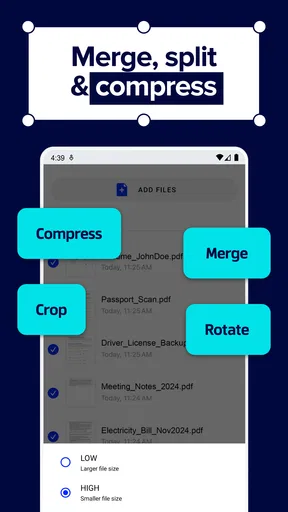
For a task that involves several PDFs, I handle one clear step at a time: identify the source files, make the intended edits, and then check the combined document. Merging is useful when the recipient needs a single file, but the order of pages matters. I would confirm the result from beginning to end rather than assume the merge produced the sequence I had in mind.
When a form or signature is involved, I review the document in its final state instead of relying on memory of what I entered. A quick visual pass catches a missed field or a mark placed on the wrong line. If I am sharing feedback with another person, I keep comments specific and attached to the relevant passage; a vague note can create more back-and-forth than it saves.
When the app may not be the cause
A PDF that looks unusual is not automatically an app failure. The file itself may be a scan, a complex layout, or a form that does not behave like ordinary selectable text. I compare what I see with the task I am trying to do: if reading works but selecting text does not, I treat it as a document limitation first and choose a suitable annotation method rather than repeatedly tapping the same spot.
It is also worth checking the basics when a file will not open or an edit appears out of date: confirm that I selected the intended document, close and reopen it, and make sure I am not confusing two copies with similar names. For anything I cannot risk losing, I preserve the original and verify the edited version before sharing. These simple checks are useful regardless of which PDF app I use.
Xodo is a productivity app from Apryse Software Inc. and is free to install, with optional in-app purchases priced from $2.99 to $109.99 per item. It is rated for Everyone, and its current version is 10.12.0, with Android 7.0 as the stated minimum operating-system requirement. It has a 4.2 average from around 471,000 ratings and more than 10 million installs. Those figures suggest a widely used tool, but my choice would still depend on whether its mix of reading and document work fits my own routine.
Making Xodo fit real work
If you’re anything like me, juggling multiple PDFs on your phone or tablet can sometimes feel like trying to keep a dozen plates spinning in the air. Enter Xodo PDF Reader & Editor, an app that promises to make managing and editing PDFs a breeze. I decided to take it for a spin, and here's how it went down.
Getting Started with Xodo
First things first, downloading Xodo PDF Reader & Editor was a cinch. It’s available on both Android and iOS, so whether you’re team Android or team Apple, you’re covered. Once installed, I was greeted by a clean, intuitive interface that made navigation a walk in the park.
The app’s layout is pretty straightforward. Right from the home screen, you can access your recent files, and there’s a handy little tab for organizing your documents into folders. I found this particularly useful for keeping work files separate from personal stuff.
Features That Stand Out
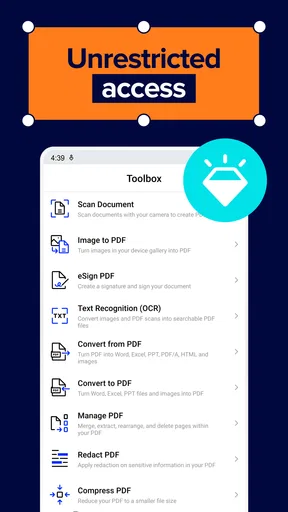
Now, let’s talk features. Xodo doesn’t just let you read PDFs—it’s packed with tools that transform your device into a mini PDF-working powerhouse.
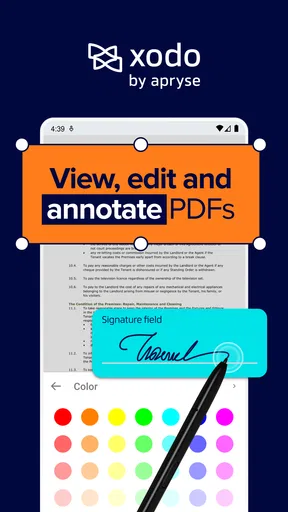
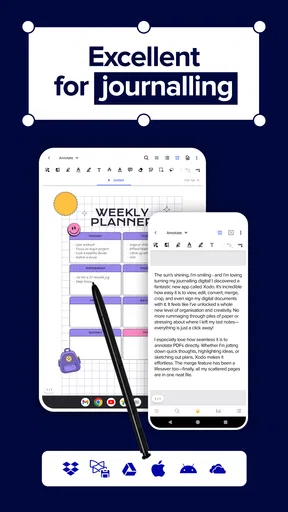
- Annotate with Ease: Highlighting text, adding comments, and underlining are super simple. You can even draw on your PDFs if that’s your jam. It’s all very user-friendly, and the app’s responsiveness ensures you’re not constantly undoing stray marks.
- Collaborate in Real Time: One of my favorite features is the ability to collaborate on documents in real time. Whether you’re working with a colleague across the hall or across the country, making edits and sharing feedback is seamless.
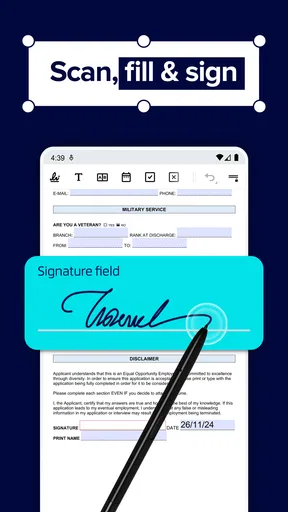
- Fill Forms Like a Pro: I was pretty impressed with how easily Xodo lets you fill out forms. Need to sign a document? There’s a nifty feature for that too, allowing you to add your signature with a few taps.
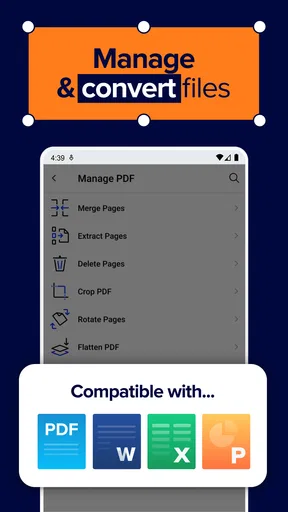
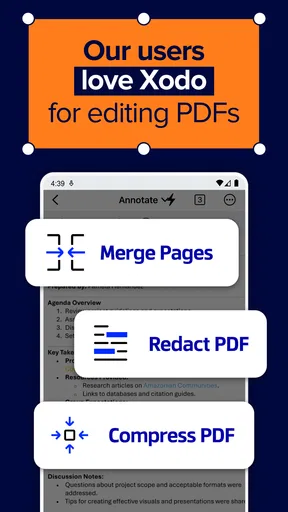
For those who often work with multiple documents, Xodo’s ability to merge PDFs is a lifesaver. I tried merging a few files, and the process was smooth as silk.
Performance and Usability
In terms of performance, Xodo runs like a dream. The app is snappy, with minimal loading times—even with larger files. While testing it, I noticed it handles complex documents without breaking a sweat.
Usability-wise, Xodo caters to both tech novices and power users. The interface is intuitive enough for anyone to pick up, while advanced users will appreciate the depth of features available.
Room for Improvement?
Of course, no app is without its quirks. While Xodo offers a ton of functionality, I did notice that some of the more advanced editing features require a bit of a learning curve. However, once you get the hang of it, you’re golden.
One other thing to note is that while the app is free, certain features are only available in the premium version. So, if you’re planning to use Xodo extensively, you might want to consider upgrading.
Final Thoughts
Overall, Xodo PDF Reader & Editor exceeded my expectations. It’s versatile, efficient, and packed with features that cater to a variety of PDF needs. Whether you’re a student, professional, or just someone who deals with PDFs regularly, this app is definitely worth a download.
Ready to give Xodo a try? You can download it from the Google Play Store or Apple App Store and start transforming the way you interact with PDFs.
Who will get the most from it
I would recommend Xodo to students who need to mark up readings, freelancers who review client documents on the move, and anyone who regularly receives forms that need a signature or a few fields completed. Its value is not that it replaces every desktop document tool; it is that common, modest PDF jobs can be handled on a phone or tablet without turning each one into a separate app hunt.
A realistic example is receiving a meeting agenda while commuting, adding a few highlights and questions, then combining it with a handout before sending one review copy to a colleague. The key advantage is continuity: reading, commenting, and preparing the file happen in one workspace. I still take a moment to check the assembled pages, because convenience does not guarantee that the final order is right.
Choosing between mobile and desktop tools
Compared with a basic PDF reader, Xodo is more useful when I need to do something to the document, not merely open it. Compared with a full desktop editor, a mobile app is naturally better for quick review, signatures, and lightweight edits than for prolonged, precise page-layout work. If I were restructuring a long report or making extensive changes that demand a large screen and keyboard, I would rather use a desktop editor and treat Xodo as the companion for review and sign-off.
It also differs from a workflow built out of separate single-purpose apps. Keeping reading, annotations, form filling, signing, and merging together can reduce handoffs, but it means the interface has more tools to learn. I would not choose it solely for one occasional highlight if the built-in viewer on my device already handles that job comfortably. Its stronger case is repeated, mixed PDF work.
Small habits that make it easier
For study notes or document review, I use a consistent marking approach: highlights for passages to revisit, underlining for key wording, and comments for questions that need an answer. This keeps visual marks from becoming a confusing wall of color. When I am reviewing someone else’s draft, I add comments where the issue occurs rather than collecting every thought at the end, which makes the feedback easier to act on.
Folder organization is most useful when I treat it as a routine rather than a one-time cleanup. I separate current work from personal documents and give files clear names before they accumulate in recents. That is a simple way to lower the chance of editing or sharing the wrong version, especially when several drafts have nearly identical names.
For a merged file, I think of the process as assembly followed by inspection: decide the intended sequence first, combine the documents, then scroll through the output to confirm the opening page, transitions, and ending. That check is particularly worthwhile when the recipient expects a packet in a specific order. It turns a handy shortcut into a more dependable handoff.
What to expect from the free option
The free starting point makes it easy to try the everyday reading and editing routine before spending anything. Since some capabilities are tied to paid options, I would first identify the exact tool I need and see whether it is available in my current setup rather than assuming every advanced task is included. Optional purchases range from $2.99 to $109.99 per item, so I would check the in-app purchase details carefully before committing; the range is broad enough that the specific purchase matters.
That approach also answers a practical question: do I need to pay just to read and annotate? For occasional basic PDF work, I would start with the free app and decide from actual use, not from the presence of premium options. Someone whose job depends on advanced document editing should compare the relevant paid capability with a desktop editor before making Xodo their only tool.
When I would choose something else
I would skip Xodo if my PDF use is almost entirely passive and my current reader already opens files reliably; extra controls would add little. I would also look elsewhere for work that requires extensive precision editing, a tightly controlled document workflow, or a larger-screen environment. And if a file’s contents are the problem—for example, a scan where selectable text is not available—switching readers may not solve the underlying limitation.
For occasional use, the app’s breadth can feel like more than I need. For regular use, the same breadth is the point, provided I am willing to learn where the less familiar tools are and check the outcome before sending. My practical verdict is that Xodo is a capable mobile PDF workbench, especially for people who alternate between reading, marking up, forms, signatures, and combining files. I would keep it in my toolkit for those jobs, while reserving a desktop editor for complex revisions and using a simpler reader when all I want is to turn pages.
Verdict
Strengths of PDF Reader & Editor: Xodo
- User-friendly interface for easy navigation.
- Supports various file formats beyond PDF.
- Free to use with no ads or in-app purchases.
- Collaborative features for team projects.
- Seamless cloud integration for file access.
Limitations of PDF Reader & Editor: Xodo
- Limited advanced editing tools.
- Occasional syncing issues with cloud services.
- No OCR feature for scanned documents.
- Annotation tools lack customization options.
- Requires internet for some features.
Similar Picks in This Category
View All
Google Calendar
Google LLC4.6

Google Drive
Google LLC4.3

Google Assistant
Google LLC3.9

Microsoft OneDrive
Microsoft Corporation4.6

Samsung Calendar
Samsung Electronics Co., Ltd.4.1

Microsoft OneNote: Save Notes
Microsoft Corporation4.6
Frequently Asked Questions
What features does Xodo PDF Editor & Reader offer?
Xodo PDF Editor & Reader provides a comprehensive suite of features, including viewing, annotating, and editing PDFs. Users can highlight text, add notes, and fill forms. It also supports real-time collaboration and cloud storage integration, making it versatile for both personal and professional use.
Is Xodo PDF Editor & Reader available for free?
Yes, Xodo PDF Editor & Reader is available for free download on both Android and iOS platforms. While it offers a robust set of features at no cost, users may have the option to access additional premium features through in-app purchases.
Does Xodo support cloud storage services?
Absolutely. Xodo seamlessly integrates with popular cloud storage services like Google Drive, Dropbox, and OneDrive. This feature allows users to easily access and manage their documents from any device, ensuring that their files are always up-to-date and accessible.
Can I collaborate with others using Xodo PDF Editor & Reader?
Yes, Xodo supports real-time collaboration, which allows multiple users to work on a PDF document simultaneously. This feature is particularly useful for teams needing to review and edit documents together, enhancing productivity and communication.
Is Xodo compatible with all types of PDF files?
Xodo is designed to be compatible with a wide range of PDF files, including those with complex graphics and interactive elements. It ensures smooth performance and accurate rendering, making it a reliable choice for users dealing with diverse document types.
